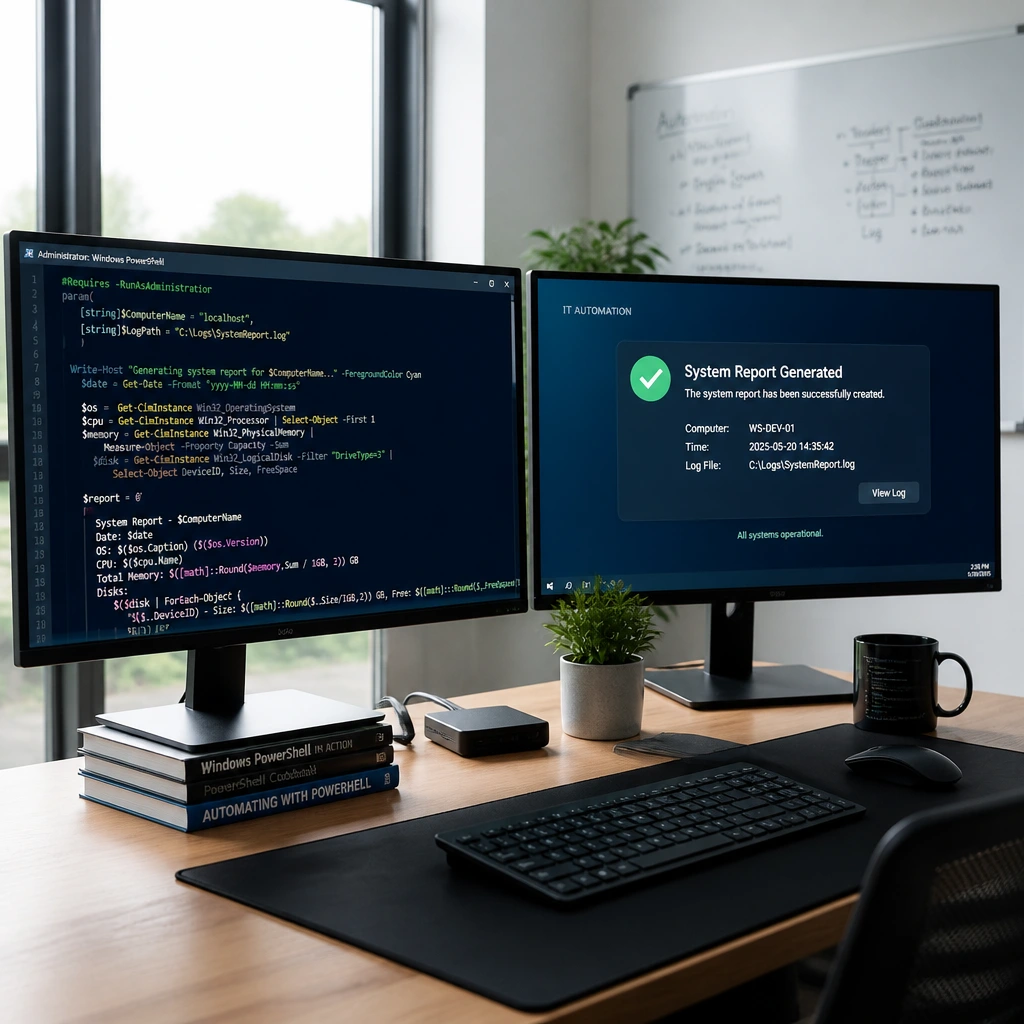
Introduction to Windows 11 Notification Mastery
In a world overflowing with digital distractions, staying on task requires intentional design. While third-party to-do lists and calendar apps have their place, they often rely on you keeping an extra window open or subscribing to heavy software ecosystems. Fortunately, Windows 11 features a robust, deeply integrated notification system that you can harness using native tools like PowerShell and the Task Scheduler. By creating your own custom notifications, you gain a lightweight, distraction-free way to remind yourself of anything—from staying hydrated and taking posture breaks to remembering critical project deadlines.
Creating tailored reminders directly within your operating system eliminates the need for bloated applications running in the background. Windows 11 natively supports rich notifications through script executions, allowing you to craft personalized titles, descriptive bodies, and even interactive elements. Whether you are a power user looking to optimize your workflow or a productivity enthusiast seeking novel methods to manage your time, learning how to script your own alerts is a transformative digital skill.
Prerequisites: Understanding PowerShell and Scripting Basics
Before diving into the creation process, it helps to understand the mechanism behind the magic. Windows PowerShell is a task automation and configuration management framework consisting of a powerful command-line shell and scripting language. To generate a custom toast notification on Windows 11, we leverage PowerShell to invoke Windows Runtime (WinRT) APIs that handle modern UI elements.
- PowerShell: The command-line environment used to execute the notification script.
- Task Scheduler: The native Windows utility that automates when your script runs.
- XML Payload: The structured template defining how your notification looks and what text it displays.
Don't let the word 'scripting' intimidate you. You do not need to be a software developer to build a basic reminder system. By following a few straightforward steps, you can draft a reusable template that acts as your personal digital assistant, quietly prompting you at exact intervals throughout your workday.
Pro Tip: Always test your scripts manually in PowerShell before scheduling them to ensure the syntax is correct and the notifications render precisely as intended on your desktop.
Step-by-Step Guide: Writing Your First Notification Script
The foundation of any good custom reminder is a clean, reliable script. To display a native Windows 11 toast notification, you will construct a short PowerShell command. This command utilizes a .NET class to display a visual alert in the bottom-right corner of your monitor, complete with a custom title and message body.
Open your preferred text editor, such as Notepad, and paste a basic PowerShell notification template. The script calls upon the Windows desktop notification manager, parses an XML string defining the visual layout, and pushes the alert to your Action Center. You can easily modify the text variables inside the script to say 'Time for a screen break!', 'Drink a glass of water', or 'Review your daily goals.'
- Set up the notification title to clearly state the purpose of the reminder.
- Draft a concise, action-oriented message body.
- Save the file with a
.ps1extension in an easily accessible folder. - Run a manual test execution to verify that the Windows 11 notification banner appears successfully.
Once your script successfully fires off a test notification, you are ready to move on to the automation phase. A reminder is only useful if it arrives precisely when you need it, which is where the Windows Task Scheduler comes into play.
Automating Your Reminders with Windows Task Scheduler
Manual scripts are great for testing, but true productivity automation requires hands-free execution. The Windows Task Scheduler allows you to trigger your custom PowerShell notification scripts based on specific time intervals, system startups, or user logins. This transforms a simple command into a persistent, reliable reminder system that runs silently in the background.
To set up an automated reminder, open the Start menu, type 'Task Scheduler,' and open the application. Create a new basic task, give it a descriptive name like 'Hydration Reminder,' and choose your trigger. You can configure the task to repeat every hour, daily at a specific time, or even when your computer unlocks after a break. When prompted for the action, select 'Start a program,' point the program path to powershell.exe, and add your script file path as an argument.
Automation is the key to scaling personal productivity. By letting Windows handle the timing, you free up cognitive bandwidth for deep, focused work.
Advanced Customization: Icons, Sounds, and Actions
Once you have mastered the basics of text-based notifications, you can elevate your custom reminders by incorporating advanced Windows 11 features. By expanding your XML payload within the PowerShell script, you can include custom images, application icons, and specific audio cues to differentiate between types of reminders.
For instance, you might want a high-priority work deadline reminder to play a distinct sound and display a red accent icon, while a casual stretch break uses a softer audio profile and a green icon. Windows 11 notifications also support interactive buttons, allowing you to click a 'Snooze' or 'Done' button directly inside the notification banner. This level of customization rivals commercial productivity apps while keeping your data entirely local and private.
- Incorporate custom PNG icons to visually categorize your reminders.
- Configure silent alerts for meetings and audible chimes for breaks.
- Add action buttons to snooze or dismiss tasks instantly.
- Maintain a centralized script repository to easily update your reminder schedule.
Conclusion: Reclaiming Focus Through Custom Alerts
Building your own custom Windows 11 notification system is a powerful way to take control of your time, attention, and daily habits. By moving away from cluttered third-party applications and utilizing native tools like PowerShell and the Task Scheduler, you create a lightweight, highly efficient environment tailored specifically to your needs. Whether you need a gentle nudge to stretch every hour or a bold alert for critical project milestones, mastering custom Windows notifications ensures you stay on top of your game, completely on your own terms.